

HubSpot keeps your contacts, your memberarea keeps your members. Once the two are connected, your automations can create and update HubSpot contacts, put them on a list or take them off again, and write any contact property. New contacts and lifecycle changes in HubSpot can start an automation, and a HubSpot workflow can grant course access, tag someone, add them to a group or send a checkout link without anyone leaving HubSpot.
Only the owner and the admins of a workspace can connect HubSpot.
From your memberarea
This is the usual way.
-
Open Settings, then Integrations, and press Add Integration.
-
Pick HubSpot. It sits at the top under Popular.
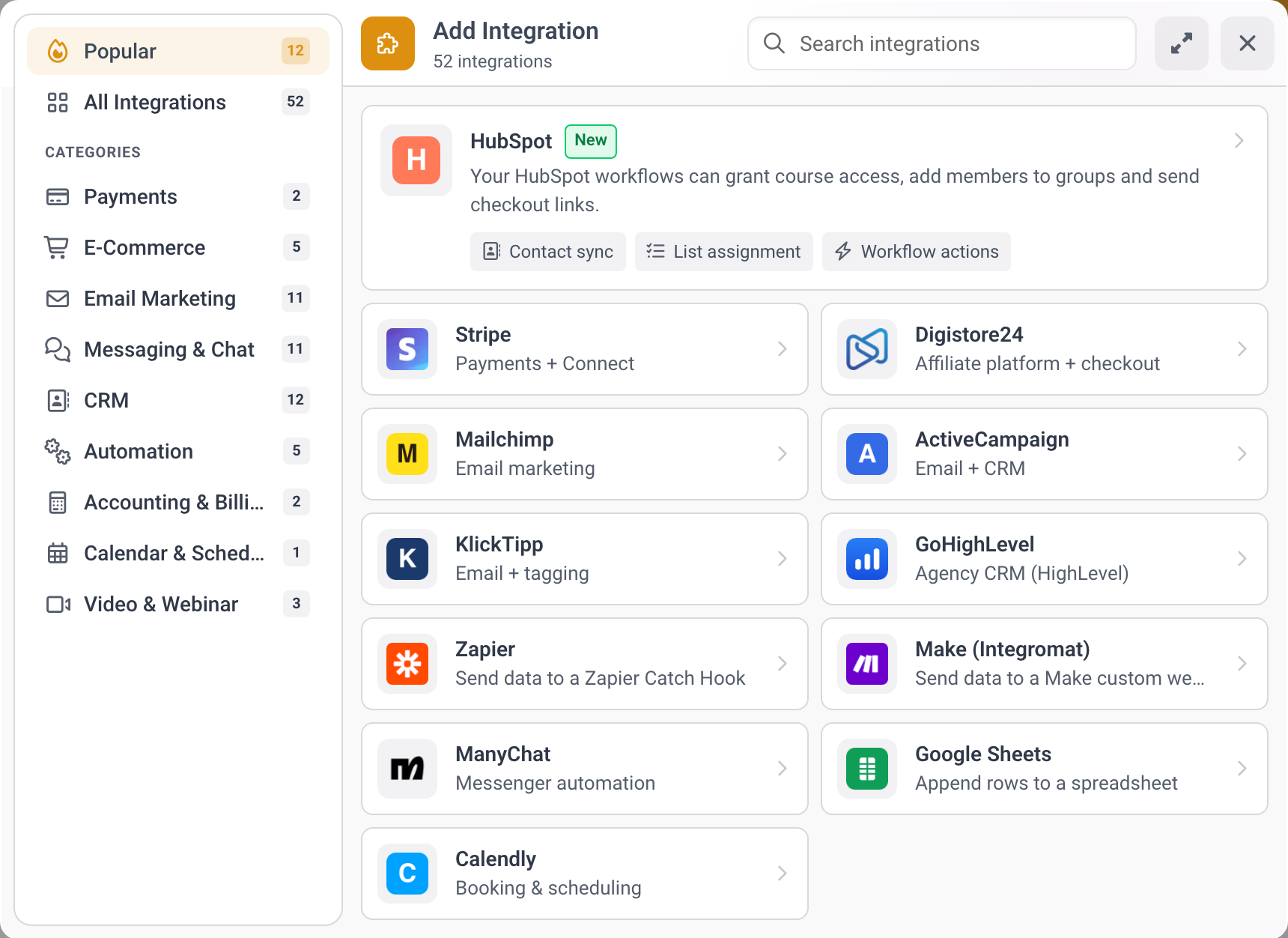
The Add Integration dialog with HubSpot at the top under Popular. -
The dialog Connect HubSpot opens. Press Connect.
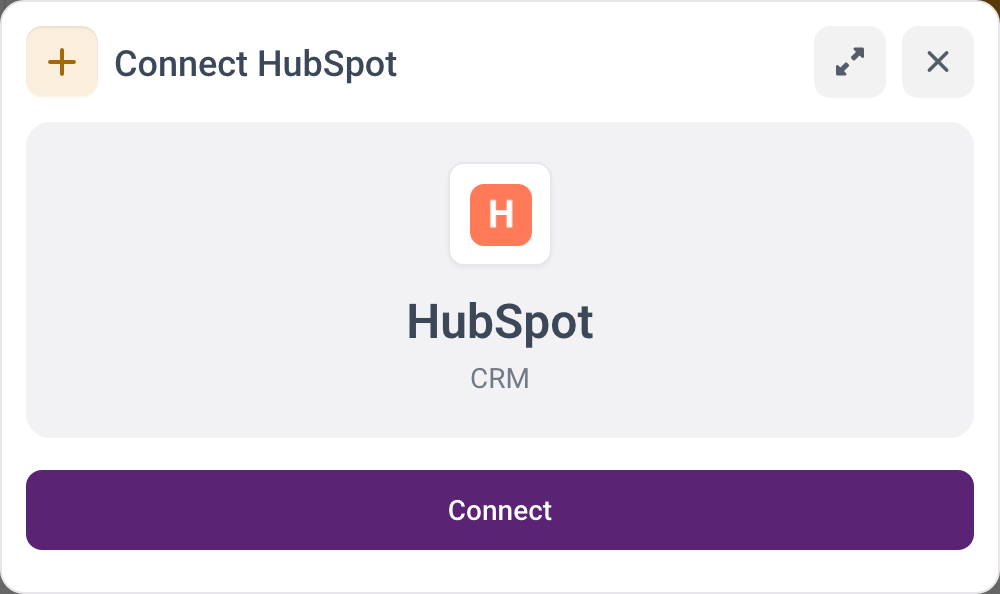
The Connect HubSpot dialog with the Connect button. -
HubSpot asks which of your accounts you want to connect and shows what the app may do. Confirm it.
-
You land back on Integrations. The HubSpot row shows the connected account and the setup reads Connected.


The connection always belongs to the workspace you started from. To connect a different workspace, open that workspace and start there.
From an installation link
If you were given a link to install the app, it starts on HubSpot's side and ends on a MemberArea page.
-
Open the link and confirm the permissions in HubSpot.
-
You land on the page Choose the workspace for this HubSpot account.
-
Not signed in? Press Sign in. You come straight back to the same page afterwards. No workspace yet? Press Create a workspace first, then open the installation link again.
-
Pick the workspace and press Connect HubSpot.
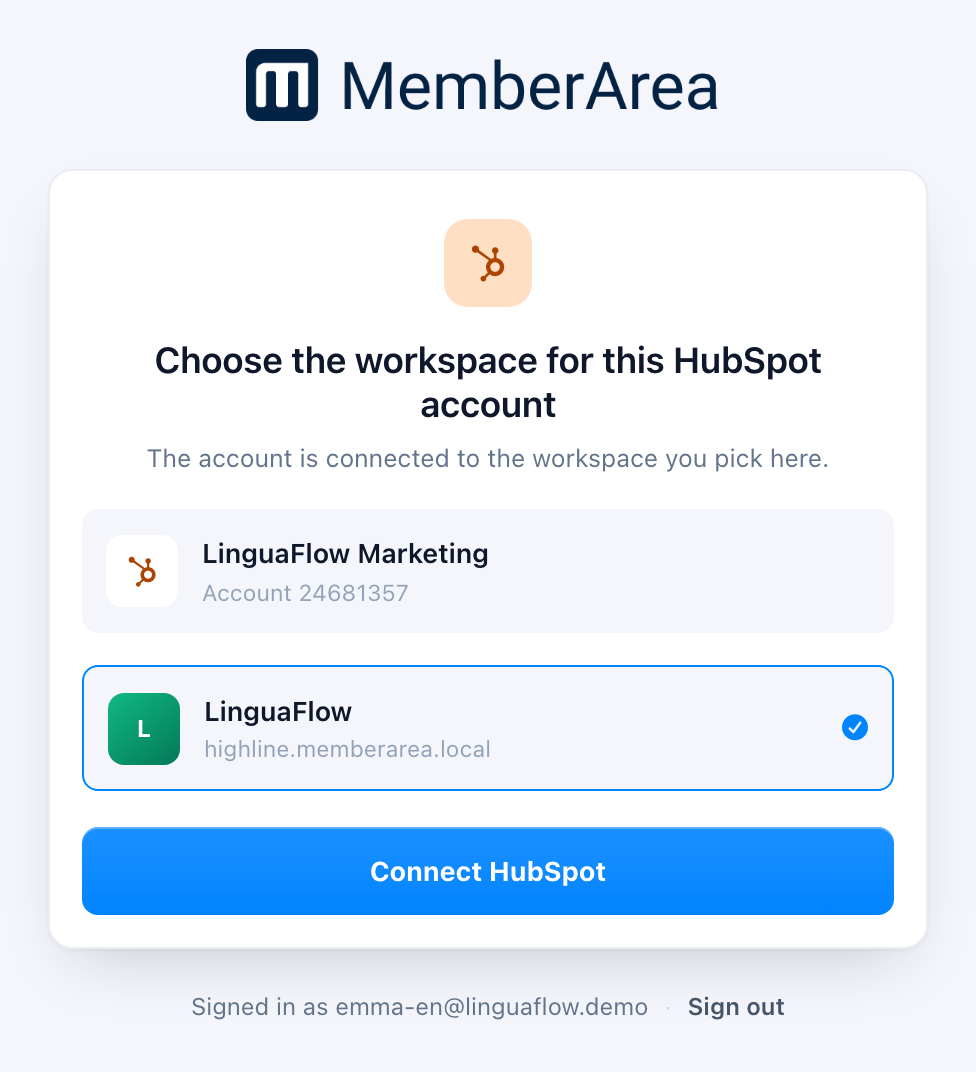
The page Choose the workspace for this HubSpot account with the HubSpot account LinguaFlow Marketing and one workspace selected.

The page stays open for 15 minutes. If you take longer, it says the link is no longer valid. Open the installation link again. Nothing is lost.
The page that follows says HubSpot is connected and lists three next steps, for example Add HubSpot to an automation and See your contacts in HubSpot. Go to your workspace takes you into your memberarea. You can close the page and come back later through Settings, then Integrations.

One account, one workspace
A workspace is one memberarea, with its own name and its own domain. A HubSpot account belongs to exactly one of them.
- If the account is already connected to a workspace you have no access to, the page says This HubSpot account is already connected and connects nothing.
- If it is connected to another workspace of yours, that workspace shows Connected in the list. Picking a different one is refused. Disconnect it in the old workspace first, then connect it to the new one.
- If the workspace you pick already has a different HubSpot account, the page shows Replaces with that account and asks you to tick Replace the current account. The old account is then disconnected.
- Connecting the same account again is a refresh, not a duplicate. The workspace shows Connected and the button reads Update connection.
What the permissions are for
| Permission | What it does |
|---|---|
Sign-in (oauth) |
Lets MemberArea identify the HubSpot account |
| Contacts, read and write | Creates and updates the contacts your members become, and tells MemberArea about new contacts and lifecycle changes |
| Lists, read and write | Loads your static lists so you can pick one, and puts contacts on it |
| Automation | Adds the MemberArea steps to your HubSpot workflows |
Automation is optional. If the HubSpot account does not grant it, everything else still works, only the MemberArea steps stay hidden in the workflow editor.
Checking the connection
Open Settings, then Integrations, and click the HubSpot row. The dialog Edit HubSpot shows the box Connection health: the connected account, every permission it was given and, if something is missing, which. Check again asks HubSpot for a fresh answer.

When the box says Workflow actions are off, Permissions are missing or This token belongs to a different HubSpot account, press Reconnect right there. HubSpot asks for the permissions again, and you come back to Integrations.
Disconnecting
Click the HubSpot row in Settings, then Integrations, and press Disconnect. Three things happen in order: the app is removed from your HubSpot account, the app's access is withdrawn, and the connection is deleted here.
Contacts that already reached HubSpot stay there. Disconnecting stops the sync, it does not clean up after it.